
We’ve created a list of the top six questions that our Phoenix Support Team receive each week about Phoenix Live & Mapping.
Phoenix Live
1. How do I save files in Phoenix Live?
- The easiest option to save files from your desktop to Live is by emailing them to your File Library. Refer to question 2 below for instructions on how to do this.
2. Can I email files to the File Library?
- Yes, you can email files directly to the File Library. To do this, simply attach files you wish to add to an email, and in the ‘To:’ field use your unique Dataset Email Address. You can view the full instructions here.
3. Why is exclusive access showing? I can’t access what I need because of this.
- If you have just upgraded a dataset, this will be the reason. To turn this off, reopen your set of books on Live by going to ‘Data’ and then ‘Open/New’.
4. Why is Phoenix Live being slow? Is there something I can do before contacting you for help?
There are several things you can check prior to contacting our support team. You can watch the 2:21 minute ‘Phoenix Live Troubleshooting’ video, or read through the troubleshooting points below.
Using a Mac
- We have a different connection process; you can view it here.
Stable Internet Connection and Dropouts
- Phoenix Live is an interactive platform that requires a stable connection to internet. If you experience dropouts, you can monitor dropouts using tools such as this Google Chrome plugin – Internet Connection Monitor.
Experiencing Lag
- Firstly, try doing a speed test. Google has a speed test or you can try the Speedtest by Ookla.
- Anything higher than 25Mbps in download, 15 Mbps in upload, and a ping that is less than 100 is ideal.
- Anything lower than these figures will affect interaction with Live and cause lags/dropouts.
‘Login Attempt Failed’ or ‘Wrong Username/Password’ Message
- Ensure you are using the correct username, which usually contain -1 (e.g. VALSP-1).
- If you think your password is incorrect, contact our support team to reset it for you.
Antivirus or Firewall Software
- These can sometimes prevent a connection, which may require you to unblock them in the software.
Stuck on a Screen with a Green Scrolling Bar with a Message Similar to ‘Establishing Connection to Computer’, ‘Configuring Remote Connection’, or ‘Preparing Destination ComputerS
- You need to run an update by opening the start menu and typing ‘update’. Search for ‘Windows Update Settings’, and then either ‘Check for Updates’ or ‘Check Online for Updates’.
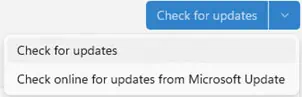
- The update you’re looking for is code named KB5022360. When you find this, click ‘Download & Install’. Your computer will need to restart after the update has been installed to apply the changes.

- If you can’t see this specific update and there are a few others that are showing on the list, you might need to install them first before you can download and install the most recent one needed to fix this issue.
Mapping
5. Why is Google Imagery not Stable as I Zoom In and Out?
- Google Maps are currently presented to mapping programs in a coordinate system not normally used for accurate mapping in Australia. If you are using Phoenix Mapping with the Google Image Layer, the layer will not be stable against your map as you zoom in and out.
- For mapping regions in Queensland and NSW, we suggest using the relevant state imagery available in the Spatial Data Library.
- For mapping outside of these states, you could change the Map Projection to ‘WGS 84 Pseudo Mercator (epsg:3857)’ under the World Coordinate systems.
6. How Do I Set Different Line and Object Styles in Mapping?
- A Theme will be automatically generated for the layer and will inherit the layer name and version number of theme (how many times the theme has been modified). You can rename the default layer Theme, styles added, edited, or deleted.
- Styles will also be automatically created based on the current variations of styling of objects on the layer. For instructions on how you can create or modify an existing Theme, click here.
Top Tips/General Information
Do You Have a Text Message Option?
- Yes, You can contact our Tech Support Team by text message on 0480 004 005. Please include your name so we know who we’ll be contacting and a detailed description of your support request.
How Do I Know When a Phoenix Update is Released?
- To ensure you don’t miss update releases of Phoenix software, select the setting ‘Check for Updates’. For instructions visit our Phoenix User Help. You can view the features that are included in the most recent update, on our ‘What’s New’ page.
Where Do I Select & Check My Email Option?
- When attempting to send an email, if the system has not been configured correctly, the program displays the below message.
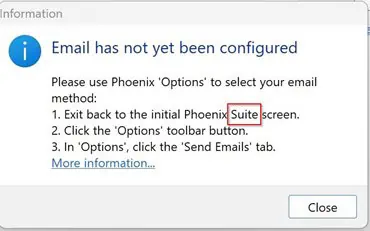
- If after attempting to follow the above message, you can’t find the ‘Send Email’ tab, then you have missed the first step of the instructions. You need to go to the ‘Options’ button on the tool bar.

- Make sure you are in the Suite screen NOT the Financials module, to select the ‘Send Emails’ tab. If you are unable to find the ‘Send Emails’ tab, please use the Contact Us Form to lodge a support request.
Why Don’t You Have an Incoming Phone Number to Call?
- We don’t offer an incoming phone number due to the unpredictable nature of support requests. Some can take up to an hour, meaning you may be holding for longer than hoped. By using the below options, our team can contact you in order of being received, once they are available, allowing you to continue your work.
- You can contact AGDATA Australia for support by:
- Using the Contact Us Form found here, or
- Texting your detailed support enquiry and name to 0480 004 005